

Guide for org admins and operators
Back up and restore a VM
A backup you have never restored is a hope, not a plan. This guide takes one, then brings it back both ways.
You need: the Admin or Operator role, and a backup target your provider has granted to your org. Compute › Backup lists your targets and how much of your quota each one uses.
1. Back up a VM now
- Open the VM and its Backups tab.
- Pick the target in the list; it shows how much of your quota you have used.
- Choose Back up now.
The VM keeps running. host42 makes a full copy of every disk, with the guest's file systems frozen for a consistent point when the VM's guest agent answers. On the server, each disk is compressed and encrypted with the VM's own key, then every part is read back and compared before the point is marked complete. If anything fails, nothing half-written is left behind, and the org's admins get a notice by email.
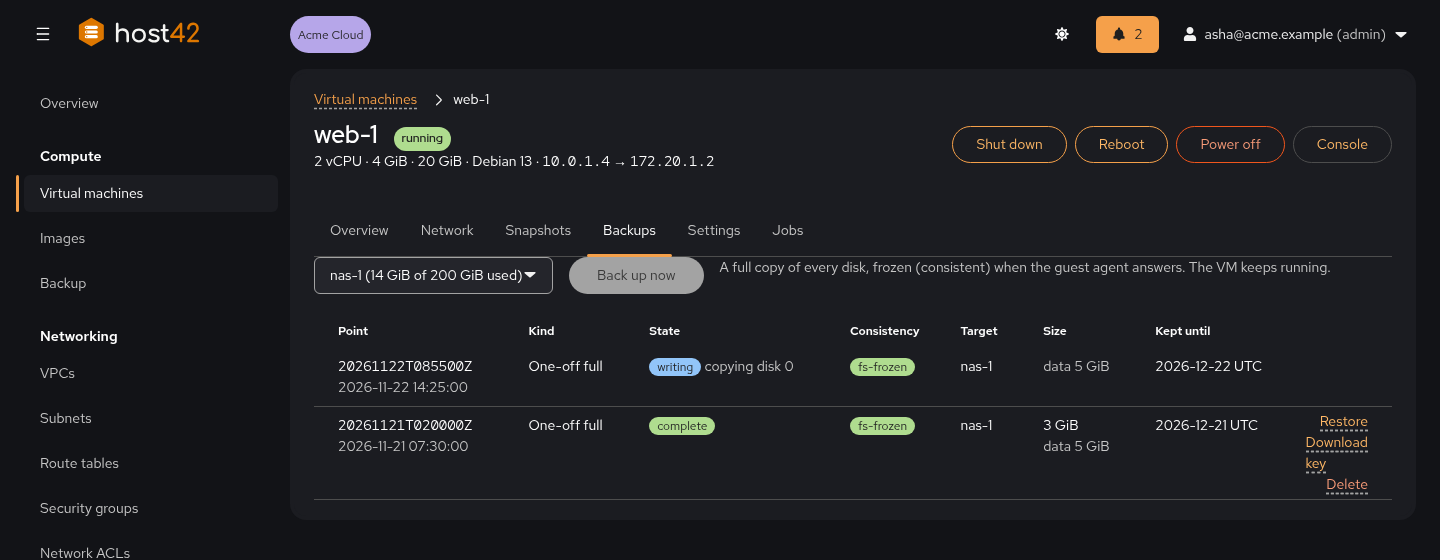
Each point shows its Consistency (file systems frozen, or the VM was powered off), its Size and how long it is Kept until. You can delete a point earlier.
2. Restore it in place
Use this when the VM itself went wrong: a bad update, deleted files, a broken configuration.
- Choose Restore on a point, or Compute › Backup › Restore a VM.
- Point: choose the recovery point. host42 shows when it was taken, its consistency, its target and its size. Choose Next.
- Mode and definition: choose In place. host42 first takes a snapshot of the VM as it is now and keeps it for 7 days, so you can still go back. If the VM is running, tick Stop … first (it is powered off, so anything it has not written to disk is lost). Leave Start the VM after the restore ticked.
- Review: read the plan, then choose Restore … in place.
The VM keeps its size, its networks and its addresses. If the restore fails, host42 rolls the VM back to the snapshot by itself.
3. Restore it as a new VM
Use this to check a backup, to recover a file without touching the running VM, or when the VM was deleted.
- Start the wizard the same way and choose the point.
- Mode and definition: choose As a new VM. Give it a Name; its vCPUs and Memory are at least the point's.
- Network: choose the VPC and, for each network card, a subnet and its security groups.
- Review, then Create … with the new VM's name.
The new VM gets new network cards and new private addresses, and the original VM stays as it is. It starts with the firmware settings it had when it was backed up.
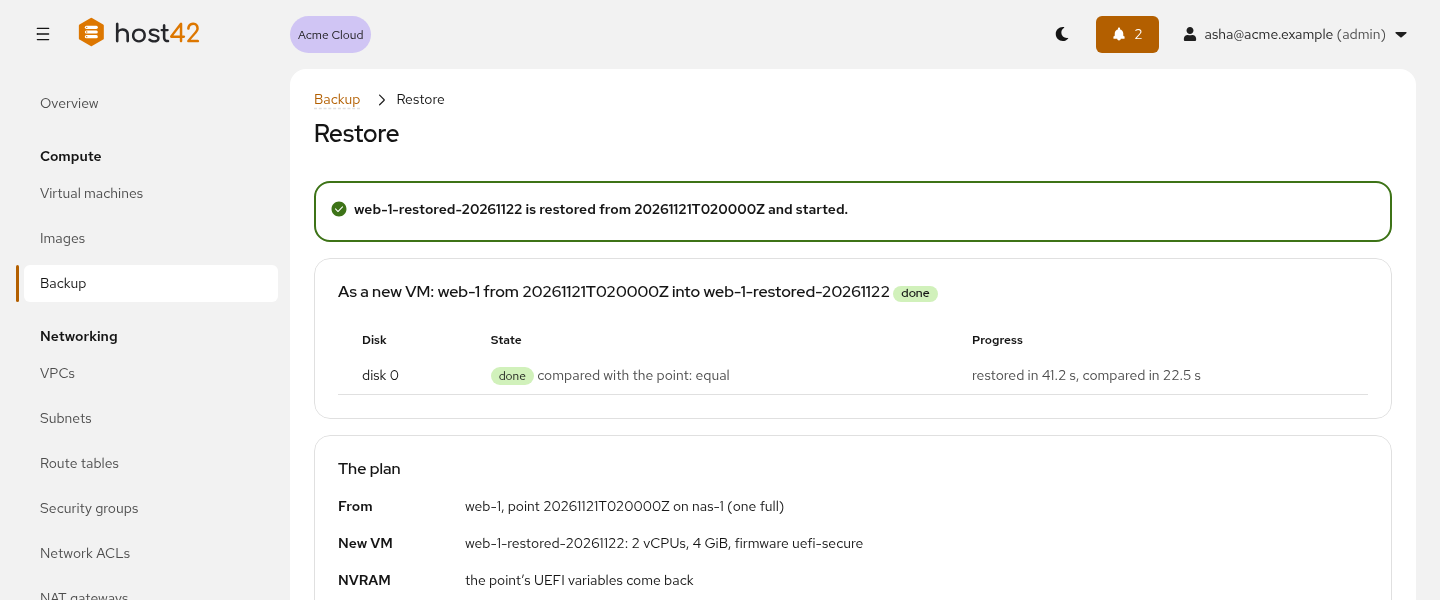
Before any data is used, each layer of the point is checked and read in a sandbox that opens only the destination disk. The restore page shows every disk's progress and the comparison with the point.
Keys and safety
- Every point is encrypted with its VM's key. Org admins can Download key for a point, after a fresh two-step code, and keep it somewhere safe outside host42.
- The Backup page says whether your provider keeps a sealed copy of your org key on each target for emergencies, so that a lost server does not mean lost backups.
- Your provider protects the NAS with read-only snapshots that host42 itself cannot change.
Scheduled backups Coming soon
Scheduled backups, per VM or for all of an org's VMs: hourly to monthly in your time zone, only the changed blocks after the first copy, the newest three points kept per VM, legal holds, and three months of history with logs.